You can follow the steps below prepared in the Rufus utility to boot Hiren's BootCD PE from a USB flash drive. For maximum compatibility on older computers, we recommend using MBR as the Partition Scheme and FAT32 as the File System (Large FAT32 for USB flash drives equal or larger than 32 GB).
If you desire to manually partition or format your USB Flash drive, follow the steps outlined in the "How can I manually partition / format my USB Flash drive?" section on our HOWTOs page. In case your USB flash drive is corrupted for any reason, attempt the steps provided under the heading "My USB flash drive is corrupted. What steps can I try to fix it?" on the same page.
Insert the USB flash drive you want to prepare into your computer.
Download Rufus v4.5 x64 (or x86) and open Rufus.
Activate Dual UEFI/BIOS mode
With Rufus open, press ALT+E to activate Rufus's "Dual UEFI/BIOS" mode.
(This mode is initially inactive within Rufus. Ensure that the message
"Dual UEFI/BIOS mode enabled" appears at the bottom of the program.
After activating the "Dual UEFI/BIOS" mode, the setting is saved in Rufus's
configuration so you won't need to enable it each time).
Note: Please activate the "Dual UEFI/BIOS" mode first and then select the ISO file.
Otherwise, the FAT32 format cannot be selected within Rufus.
After activating the "Dual UEFI/BIOS" mode, select your USB flash drive from the
"Device" list (or ensure it is selected correctly) and choose the HBCD_PE_x64.iso
file by clicking the "SELECT" button.
Choose Partition Scheme and File System
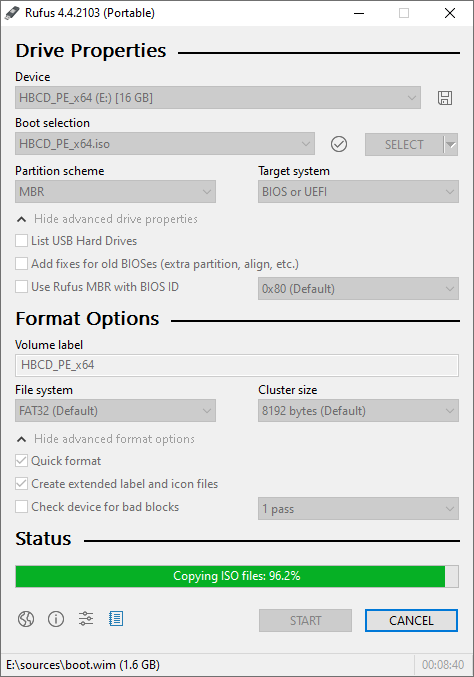
Choose "Partition scheme" as "MBR" and "File system" as "FAT32".
Note: For USB flash drives equal or larger than 32 GB, choose "Partition scheme"
as "MBR" and "File system" as "Large FAT32". If the "Large FAT32" option is not
visible in Rufus, please press the ALT+L key combination to enable "Force Large32
formatting".
Enter an appropriate label for your USB flash drive in the "Volume label" field.
You can refer to the screenshot below for all the settings.
Click the "START" button and if the warning message is acceptable to you, begin the
preparation process by clicking "OK".
Note: In newer versions of Rufus (4.6 and later), please ignore the "Revoked UEFI
bootloader detected" warning by clicking "OK" and proceeding with the USB flash
drive creation.
The preparation process may take approximately 10 minutes, depending on the write
speed of your USB flash drive.


Post a Comment